Every workflow is green, and the emails send blank
An imported snapshot runs green while its emails send blank names and its links go nowhere. The custom values and fields underneath broke. Here is the repair.
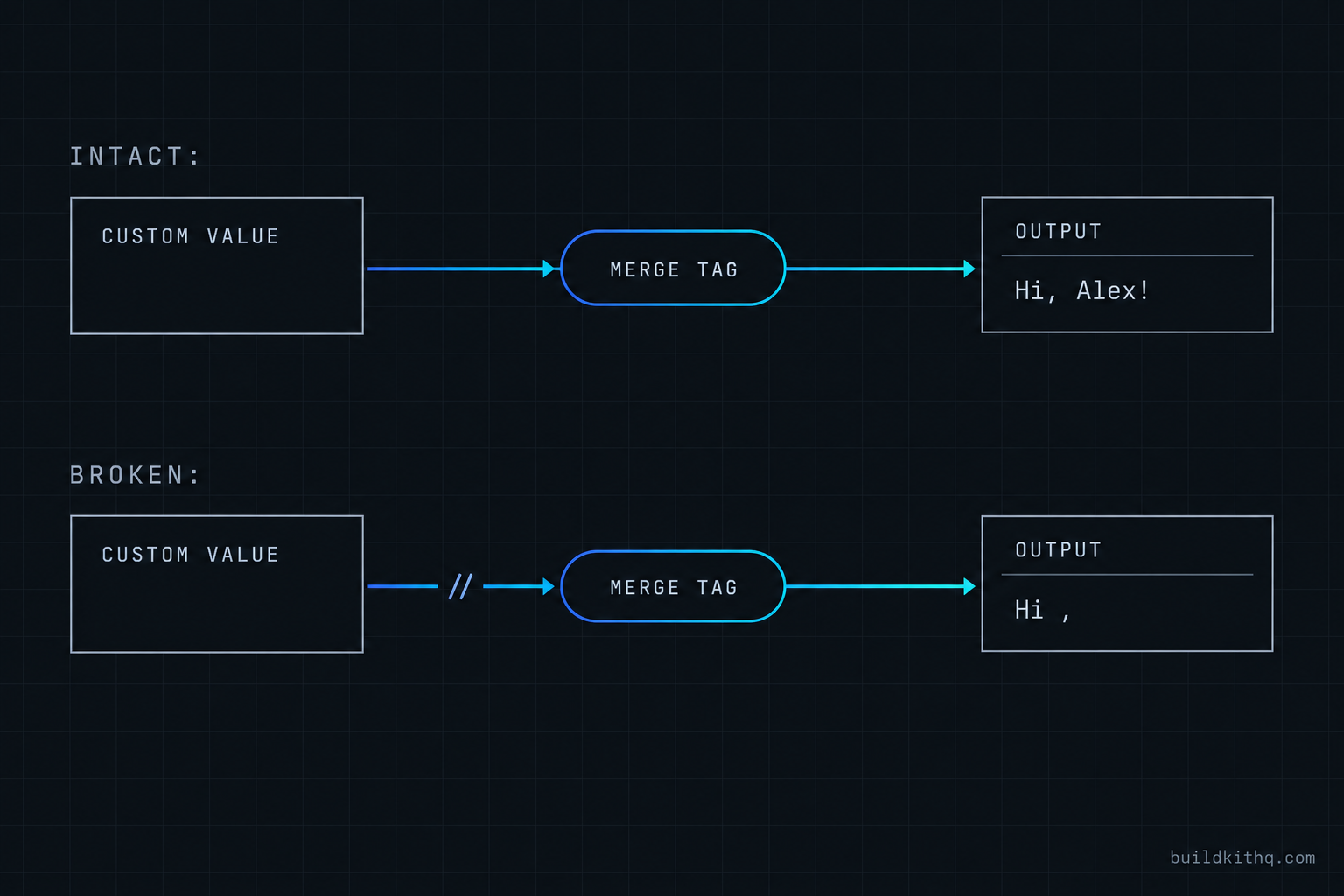
You import the law firm kit into a new client sub-account on a Friday. Every workflow toggles to active. The pipeline is there, the calendar is there, the intake forms render. You send yourself a test lead to prove it works before the handoff on Monday. The confirmation email arrives in seconds. It reads “Hi ,” with nothing after the comma. The booking button under it goes to a blank page. Ten minutes later the follow-up text lands: “Thanks for contacting . A member of our team will be in touch.” Nothing errored. No workflow failed. No red anywhere in the account. The build looks finished and it just sent a client’s prospect two messages addressed to no one.
This is the failure that does not announce itself. The automations are running exactly as drawn. What broke is the layer underneath them, the stored data that the merge tags were supposed to read, and that layer does not throw errors when it is empty. It just returns nothing, and the automation carries the nothing all the way to the prospect. If you have imported a snapshot and found it half-built, this is usually the half that was missing, and it is the half a client notices first because it has their customer’s name on it.
The data layer a snapshot does not bring with it
A snapshot copies the structure of a GoHighLevel sub-account. It carries the workflows, the funnels, the forms, the pipeline stages, the calendar settings and, importantly, the definitions of every custom value and custom field the build uses. What it does not reliably carry is the stored content of those definitions. The reference survives the import. The thing the reference points at often does not. Understanding why starts with the two kinds of data a build reads from, because they are different objects that break in different ways.
Custom values are the account’s variables
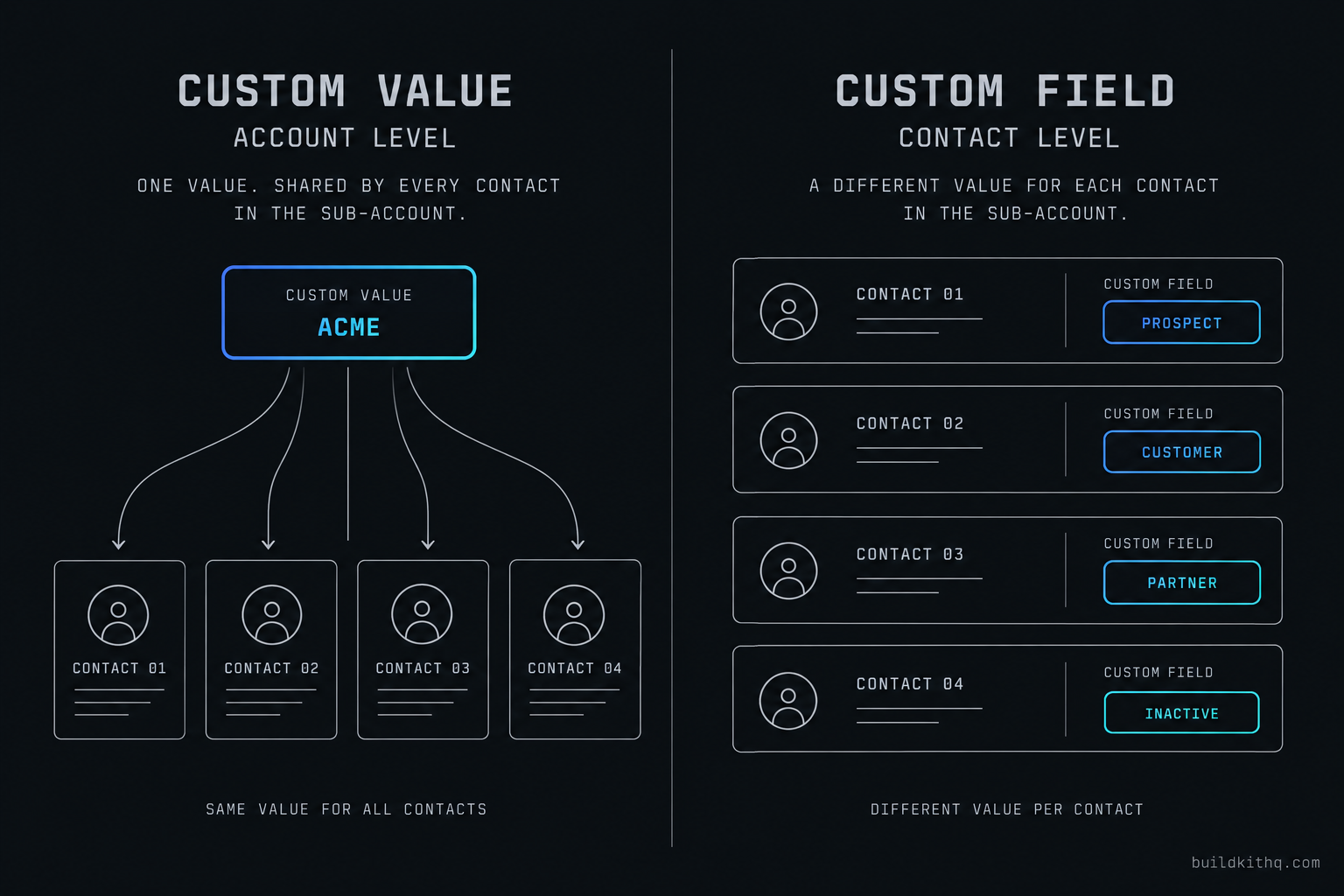
A custom value is a single setting that applies across the whole sub-account. The business name, the main phone number, the booking link, the office address, the Google review link, the hours. You set it once and every email, text, funnel and workflow that references it reads the same answer. In a message body it appears as a merge tag like {{custom_values.booking_link}}. HighLevel’s own documentation describes a custom value as a name, a stored value and a merge field you drop into the places that support it, and notes you can reference one in a great many spots across a workflow. That reach is the point and also the exposure: one empty custom value shows up in every message that reads it.
When a snapshot lands in a new sub-account, the custom value names arrive. The stored values are a different story. Some import empty. Some arrive carrying the value from the account the snapshot was built in, which is worse, because now the client’s booking confirmation points at the builder’s calendar and nothing on screen looks wrong. Either way, the work after import is to fill the sheet of custom values with this client’s real answers, and until you do, every tag that reads one of them resolves to blank or to somebody else’s data. You can also change a value from inside a workflow with the update custom value action, which is worth knowing, because a build that sets a value mid-automation will read blank anywhere that runs before the action does.
Custom fields are the contact’s record
A custom field holds data that is different for every contact. Case type and jurisdiction on a law firm lead, appointment reason on a clinic lead, property address on a real estate lead. It appears in a message as a tag tied to the contact, and it is read all through the build: a workflow branches on it, an email prints it, a form writes to it. The field definition travels in the snapshot. The catch is the key.
Every custom field has an internal key that workflows and conditions reference, not the friendly label you see in the settings screen. When a snapshot imports, those keys can re-map. The field called “Case type” still exists, the form still writes to it, but a workflow condition that was checking the old key is now checking a key that no longer matches the field the form fills. The label looks identical in both places. The reference between them is quietly pointed at nothing. This is the hardest of the failures to see, because the field is populated, the form works, and only the automation that reads it behaves as though the data is not there.
What “active” actually tells you
Here is the trap in one sentence: a workflow being active says nothing about whether the data it reads resolves. The toggle means the workflow is enabled and will run on its trigger. It does not mean the merge tags inside it find values, or that its conditions match anything, or that the links it builds resolve to a real page. GoHighLevel treats an unresolved merge tag as an empty string, not an exception. The send succeeds. The automation reports success. The green you are looking at is the automation’s own health, and the automation is healthy. It is reading from a layer you have not filled yet.
| Custom value | Custom field | |
|---|---|---|
| Scope | The whole sub-account | A single contact |
| Holds | Booking link, business name, hours, review link | Case type, appointment reason, address |
| Reads as | {{custom_values.name}} |
A contact field tag or key |
| What a snapshot brings | The name, rarely the stored value | The definition, sometimes a shifted key |
| How it breaks | Empty, or carries the builder’s data | Key no longer matches what reads it |
Four ways the import severs a reference
Once you accept that the data layer is the thing that broke, the failures stop looking random. There are a small number of places a reference lives, and each one fails in a recognisable way. Walk them in order and you find almost everything.
The merge tag that renders to nothing
This is the “Hi ,” you already saw. An email or text body contains {{custom_values.business_name}} or a contact field tag, the value behind it is empty in this sub-account, and the message sends with a hole where the word should be. The reader sees a greeting addressed to no one, a sign-off from no one, a sentence that reads “book here:” with no link after the colon.
What is actually wrong is almost always an unpopulated custom value, because those are the tags that touch every message. The fix is mechanical once you know it: open the custom values screen and fill in this client’s real answers, then search every email and text body in the build for {{custom_values and confirm each tag you find has a populated value behind it. Field tags that read blank are the contact-level cousin of the same problem, and you check those the same way.
The condition that never matches
A workflow splits on a custom field. If case type is one thing, send down the fast intake path. If it is another, route to a different attorney. After import, every single lead goes down the else branch, the catch-all, the generic path, as though the condition is never true for anyone. The contacts have the field filled. The form is writing to it correctly. The branch still sends everybody the same way.
The cause is the key mismatch described above. The condition is reading a field key the import re-mapped, so it compares against data that is not there and resolves false every time. This one is invisible from the outside, because the workflow runs, contacts move, messages send. You only catch it by opening the condition itself and confirming it points at the live field, the one the form actually fills, not a stale key with the same label. Rebuild the condition against the current field and the branch starts matching again. If a kit’s routing matters, and on a law firm intake it is the whole value of the build, this is the check you do not skip.
The link built on an empty value
Plenty of builds assemble a URL from a custom value. A booking button whose destination is {{custom_values.booking_link}}, a funnel redirect that appends a value, a trigger link in a nurture email. When the value is empty, the button still renders, it just points at a blank or broken destination. The prospect clicks “Book your consult” and lands on nothing, which is a worse outcome than no button at all, because they tried.
The fix is to populate the value, but the find is the work: these are the references that do not show up as obviously blank, because a button with no visible text still looks like a button. Click every call to action in every funnel and email the kit ships, and confirm each one goes where it should in this account, not to the placeholder it was built against.
The sender that goes out blank
The last place is the envelope rather than the letter. The from-name on an email, the business identity a text sends under, the reply-to, the address in the footer that keeps you compliant. These are frequently custom values too, and when they are empty the message goes out from a blank or placeholder sender. Sometimes it carries the builder’s own brand straight to the client’s customer, which is the kind of thing that ends a client relationship in one screenshot.
Check the sending settings of every email and the business profile the texts send under. Confirm the from-name, the reply-to and the footer address all read this client’s real details and not a blank or a leftover. This overlaps with getting mail out of spam in the first place, which has its own set of checks to run before any of this matters.
Finding every broken reference before the client does
The four failures above share one property: none of them show up in a casual look at the account, and all of them show up instantly to a real lead. So the repair is not clever, it is systematic. You go looking for references in the places references live, and you do it before anyone outside the build sees the account.
Start at the data layer and work outward. Open the custom values screen first and fill every value with this client’s real answer, because that single pass clears most of the blank merge tags and dead links at once. Then search the message bodies: every email, every text, every snippet, looking for merge tags, and confirm each tag resolves. Then the conditions: open every workflow that branches and confirm each condition points at a live field. Then the links: click every call to action in every funnel and email. Then the envelope: from-names, reply-to, footer, sending business profile.
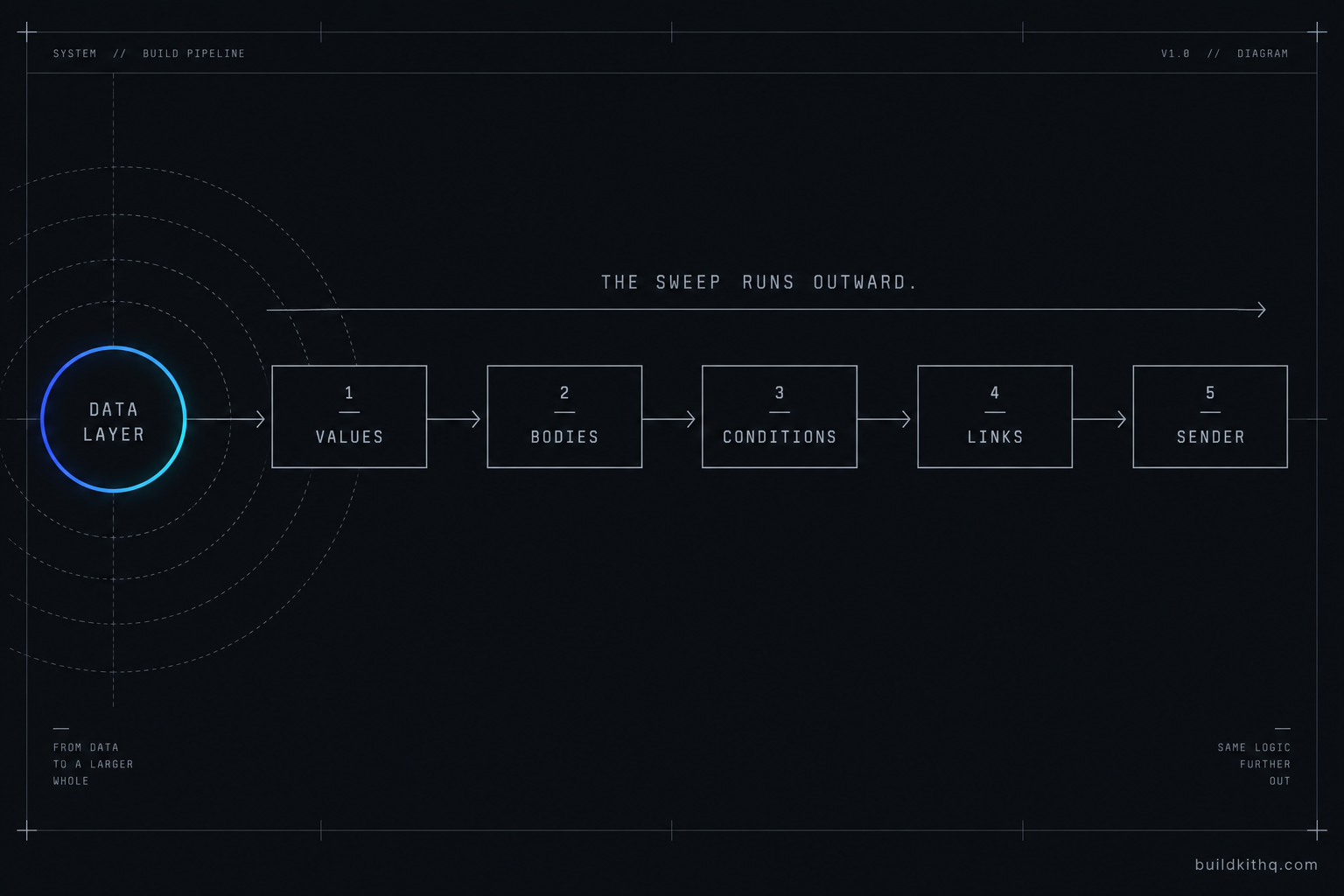
This is the same discipline as a proper import QA pass before a client handoff, narrowed to the one layer that fails silently. If you have ever had a workflow that fires but nothing actually sends, you have met the send-path version of the same lesson: active is not the same as working, and the account will not tell you the difference. You have to go and check.
What the afternoon actually costs
The honest question is whether this is worth paying to avoid, and the only honest way to answer it is with your own numbers, so here is the arithmetic with the assumptions printed. Say you bill your own time at $120 an hour, which is conservative for an agency owner who also sells builds. A careful reference sweep on a freshly imported snapshot, done properly across all five passes, is an afternoon. Call it four hours. That is $480 of your time on one install, and it recurs on every client you stand the same kit up for, because the data layer is per sub-account by design.
Now weigh that against the build itself. A snapshot on this site runs between $875 for the salon and barber kit and $2,395 for the mortgage broker kit, with the rest of the catalogue in between, and every price is listed in full on the pricing page before you buy. Those are one-time numbers against a GoHighLevel account that, per HighLevel’s own pricing page, runs $97 a month on Starter, $297 on Unlimited and $497 on the top plan, billed yearly at ten times the monthly rate with a 14-day trial on each. The platform is the recurring cost. The kit is not.
The point of the comparison is not that buying is always cheaper than building, because it is not, and a post that told you otherwise would be selling. The point is that the reference sweep is a cost either way. If you build the snapshot yourself you pay it in the build and again on every install. If you buy one, you still pay it on the install, which is why a kit here ships with 10 hours of dedicated installation support, to be used within 12 days of purchase, and that support covers installing the kit, rebranding the website, A2P and 10DLC registration and setup, email domain setup in GoHighLevel, and a few extra automations where they are needed. Populating the custom values for the first client is part of that work, not an upsell on top of it. What the hours never cover, on any kit, is third-party integrations, third-party software or custom development, and those are quoted separately. The number you should run is your hourly rate times the installs you expect, not the kit price in isolation.
The objections worth taking seriously
“I will just find these myself in an afternoon”
You can, and if you are reading this you probably already know most of where to look. The honest counter is not that you cannot do it, it is that the four-hour estimate assumes you find the silent ones, and the silent ones are the condition that never matches and the link that renders but goes nowhere. Those do not announce themselves in a walkthrough. The blank greeting you catch in the first test. The misrouted branch you catch three weeks later when the client asks why every lead got the generic sequence. The afternoon is real. The risk is the reference you did not think to check, on the account with a client’s customers already in it.
“Your kit has the same problem, so why buy it”
It does, and I am not going to pretend otherwise. Structure transfers and stored values do not, and that is true of every snapshot ever made, ours included. A kit from here imports with the same empty custom values as any other, because the empty values are the client’s, not ours to fill. The difference is narrower and more honest than a sales page would put it: the kit ships with a documented list of every custom value it reads, so the sweep is a checklist instead of a scavenger hunt, and the install hours are there to do the first pass with you. You are not buying immunity from the data layer. You are buying a build where the references are known and labelled instead of discovered by a client’s prospect.
“Then I will just hardcode everything and skip custom values”
You can hardcode the business name and the links directly into every message and never touch a custom value. It works, right up to the second client. The reason the build uses custom values is that they turn a rebrand into one screen instead of a find-and-replace across every email, text and funnel in the account. Hardcoding does not remove the data layer, it scatters it into a hundred places and removes your ability to change it in one. For a single account you will run forever, maybe. For an agency that stands the same kit up for client after client, it trades a one-time sweep for a permanent tax on every change you ever make.
None of this is exotic. It is the most ordinary way a GoHighLevel import breaks, and it breaks quietly, which is the only reason it keeps reaching clients. Fill the data layer first, check the references in the order they live, and do it on your own test lead before the account has a real one. The account that looks finished and the account that is finished are separated by exactly this afternoon.
Quick answers
The structure transfers. The snapshot carries the custom value names and every reference to them in workflows, emails and funnels, but the stored value is usually blank or carries the builder's own data. You populate the values in the new sub-account after import, which is why a fresh import renders merge tags as empty strings until you do.
A merge tag is pointing at a custom value or custom field that has no value in this sub-account. GoHighLevel renders an unresolved tag as an empty string rather than an error, so the email sends and reads 'Hi ,' with nothing after it. Find the tag in the email body and populate the value it references.
A custom value is account level: one stored value for the whole sub-account, like the booking link or business name. A custom field is contact level: a separate value on every contact record, like case type or appointment reason. They use different merge tags and break for different reasons, so you check them separately.
Finding and repairing every blank merge tag, dead link and misrouted condition in a freshly imported snapshot is an afternoon of careful work if you know where references hide. The silent ones, the conditions that never match, are what stretch it, because nothing on screen tells you they are wrong.
Keep reading
What a finished GoHighLevel account does with a lead
A lead moves through five stages in a finished GoHighLevel account. Here is what each stage is wired to, and the handoffs where a half-built one drops it.
Read itThe AI receptionist in your kit answers, but never books
An imported kit's AI receptionist replies around the clock and books no one. Here is the booking path underneath, the four places it breaks, and the fix.
Read itThe four ways to catch a lead your client's phone missed
A missed call is a lost client. Compare the GoHighLevel AI Receptionist, a human VA, missed-call text-back and voicemail on the eight things that matter.
Read it